
Setting Up DroidDeck on the Retroid Nova: The Wireless Debugging Guide for Casuals
The no-adb, no-computer guide for setting up DroidDeck on your Retroid Nova.
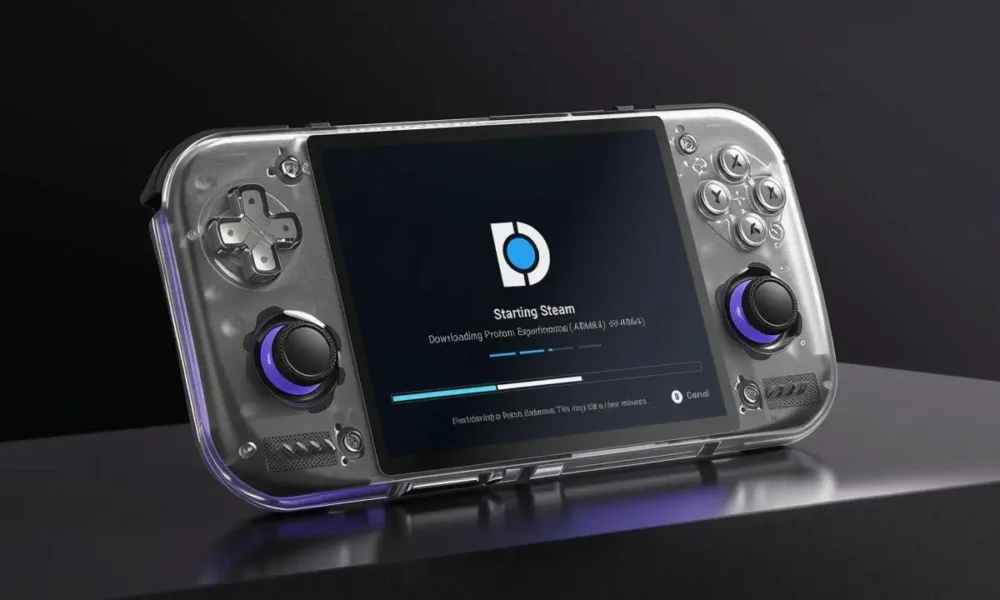
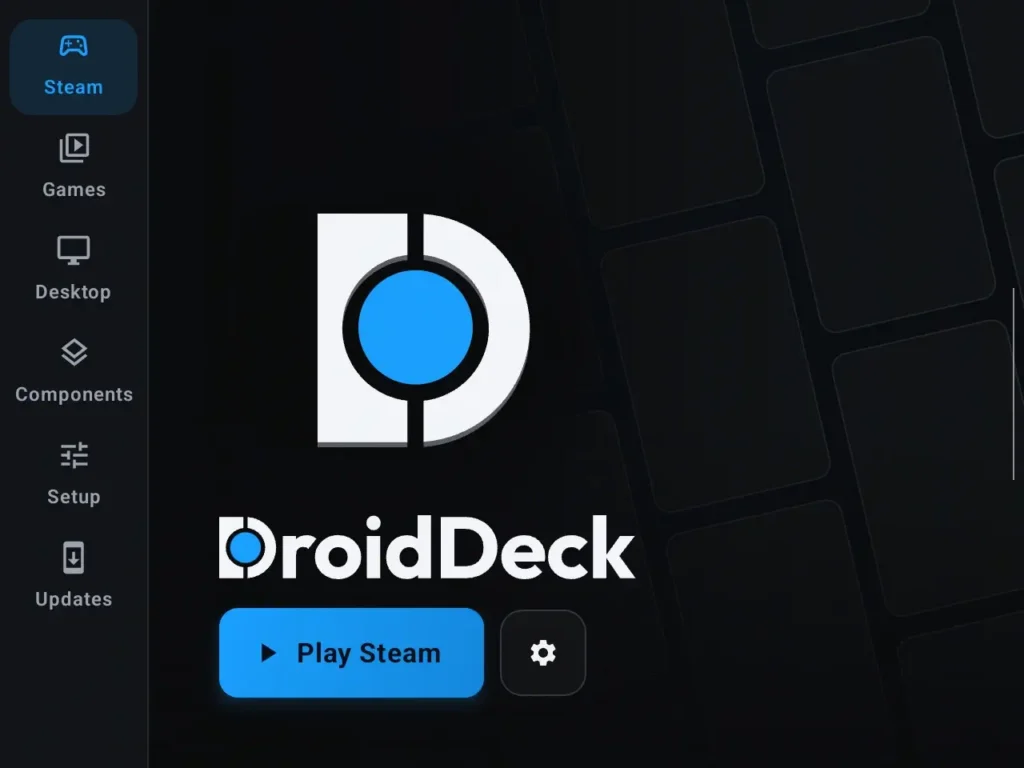
Following up on yesterday’s article about DroidDeck, I encountered issues again configuring the Wireless debugging setup on my Retroid Nova.
For tech-hardened tinkerers, this article isn’t for you, but if you’re a casual who’s drawn to simplicity, who can’t find simple instructions online, and just want to play games via SteamOS on your retro handheld (must be Snapdragon!), here’s a setup that could save you time.
And no, you don’t need adb or to connect to a computer.
- Open DroidDeck, then open your device Settings separately and bring up the Developer Options. If you don’t have that enabled, go to Settings > About > click on ‘Build’ at the bottom of the screen until Developer Options unlock. Once unlocked, this section can be found in Settings > System.
- When toggling Developer Options on, then Wireless debugging, ensure you tick the box that always allows on your network. Notification settings are a red herring, as the Retroid Nova’s version of Android won’t work with this setup.
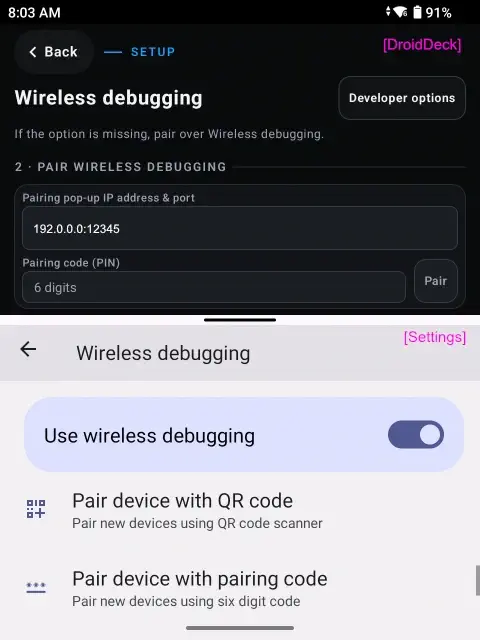
- Swipe up to recent apps and then hold the DroidDeck icon and open in split-screen (this is essential as when you switch screens, the code resets). Add the Settings screen so both are visible simultaneously.
- At the top of your device, swipe down to reveal quick settings and enable auto-rotate, and disable force landscape if enabled.
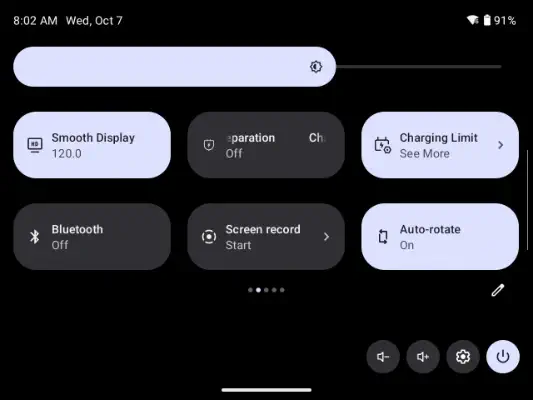
- Turn your device vertically and use the drag bar to size both apps within your screen, ensuring you are in the pairing screen for DroidDeck and Wireless debugging for the Settings screen.
- In Settings, click ‘Pair device with pairing code’. Leave that dialog open. Switch to DroidDeck and tap the field for IP + port, followed by the 6-digit PIN.
- Change your keyboard mode to floating, as it will cover the Settings screen.
- On DroidDeck, tap Pair.
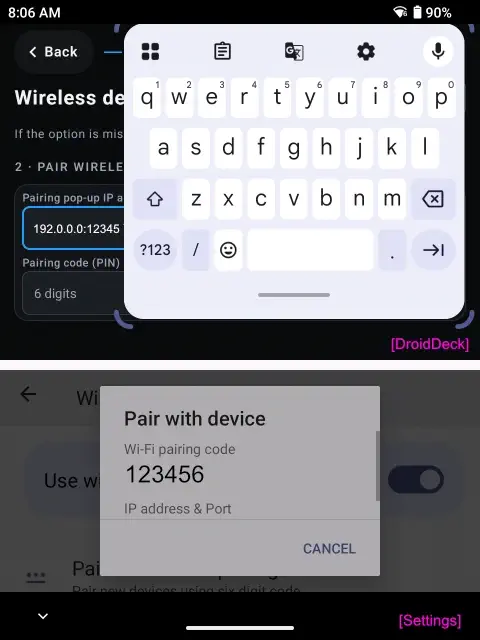
- The next step is to go back to the Settings screen and click out of the dialog box. You should now see a port assigned to the Retroid Nova.
- Enter the port number after the IP and colon (e.g., 192.168.1.42:12345) on the DroidDeck screen and click ‘Turn limit off’. Wait a bit, and you can then sign into Steam and start using the app, a.k.a. play games!
Why The Split-Screen?
The reason for using the split-screen is because you can’t copy and paste the IP and PIN. You could take a screenshot, then switch screens to the DroidDeck app, but the moment you leave Settings, the code is reset. This is why it’s easier on the AYN Thor due to dual screens.
Also, I couldn’t change the height of DroidDeck in horizontal mode or scroll, so that’s my reasoning for switching to the vertical mode.
If It’s So Easy, Why Bother To Post This?
I had intended to quickly install DroidDeck this morning while also installing RetroHrai, as there has been a significant update on it that brings it up to Cocoon-level aesthetics.
However, it took me over an hour to work this out how to enable Wireless debugging without using adb. There were no tutorial videos, Reddit posts or guides, besides continual prompts to connect to my computer and add command lines. No, thanks.
If that helps just one person, great! If it helps more than three, I’m buying a cape.


Thank You for this!
cheers man, i too was confused with the lack of explanation anywhere about the pairing steps
Glad this has helped! I found the setup such a pain when I just wanted to play games with minimal fuss. DroidDeck has soooo much potential; I genuinely haven’t touched my Steam Deck for at least 6 weeks now.
I’m so close to buying that cape…