
DroidDeck: Native SteamOS on Snapdragon, No Tinkering Required
Want a Steam Deck but can't afford it, nor want to root your handheld? Here's how.
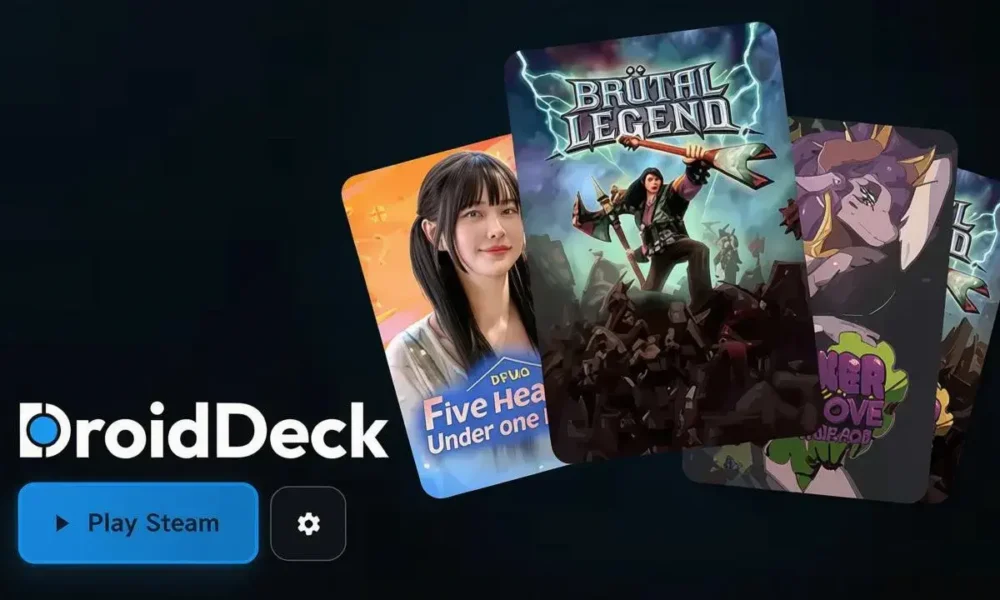
With the cost of Steam Decks, Steam Machines and the price of actual steam going in the opposite direction of your hairline, it makes sense to use a retro handheld to play your games.
I do that for all my reviews now, and aside from triple-As like Assassin’s Creed: Shadows or the odd touchscreen issue in Sucker For Love: First Date, retro handhelds are a fantastic alternative.
I’ve already said that my AYN Thor wouldn’t replace my Steam Deck (it has, and I’m so close to selling it), but I don’t want to natively run Steam OS. GameNative works for me, and I don’t want to faff with Armada OS. But what’s DroidDeck?
In short, you can run SteamOS on your Snapdragon-equipped device, either as a separate app booted in Big Picture Mode, or set it as your default launcher.
I still haven’t switched my default launcher for either the AYN Thor or Retroid Nova. If anything, it would be NeoStation, but I’m very interested in a plug-and-play Steam experience, which seemingly is DroidDeck.
Key points about DroidDeck
- Native ARM64
- Simple setup *depending on your device
- Apps like Decky installed without switching to desktop mode
- 100% offline. Install your game and walk/play away
- Set as the default launcher, with Android apps launching from a menu
- Cloud saves are more reliable
- Easier to navigate, implement store and wishlists
- No configuration per-game required (excluding tweaking)
DroidDeck Vs GameNative (They Can Still Be Friends)
GameHub was probably the easiest to get started with for playing Steam games (once you beat the initial loading screen), though for a handful of reasons, I switched to GameNative and will still use it.
Containers, emulators, math equations… get past that and it’s intuitive. But here’s the catch: time. You wanna play, not configure, yeah?
DroidDeck is configured like the Steam Deck, and put crudely, it works out of the box or not at all. The games I tested work, though I don’t expect to play graphically intensive titles on such a small device – even if playing through the TV.
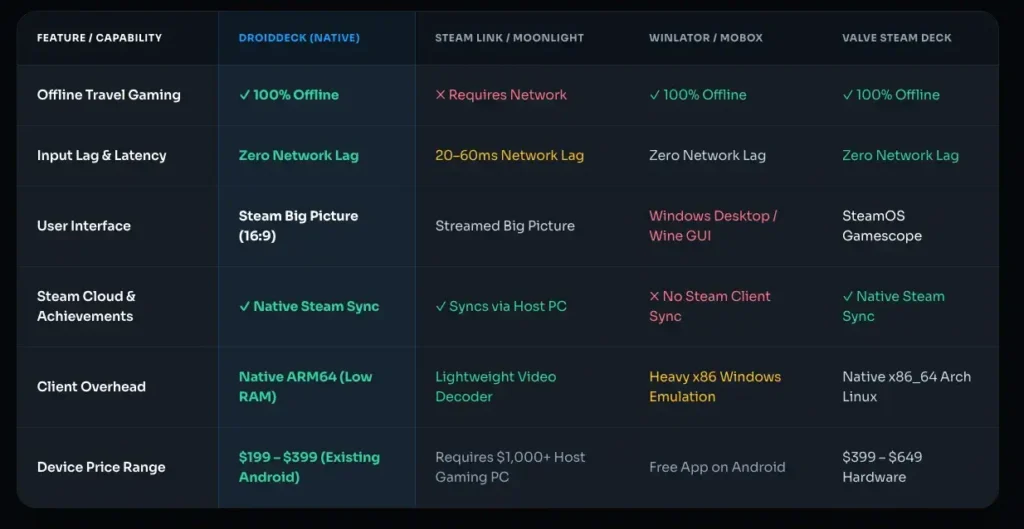
There isn’t the same tinkering as in GameNative, though that’s a selling point: use both. Like frontends, you don’t have to be locked into one and can switch back and forth.
The bottom line of DroidDeck, however, is the accessibility. After all, it boots in Big Picture Mode, and that would imply you want to just play games, right?
The Installation
I installed DroidDeck on my AYN Thor specifically for this article, to make sure I didn’t miss any steps. If you want a video tutorial, there are plenty out there. This is just an overview to show how simple it is.
Don’t be put off. If I can do it, so can you.
I downloaded the latest release (0.31) Standard Edition apk from the official site, though you can go to GitHub if you prefer. There isn’t a Play app at this time. Just check that you have the right link for GitHub.
You’ll get safety warnings about downloading and running an apk, so you can either bail now, or regret it in 30 years when they come to take your soul. Allow notifications and whatnot to begin with. Feel free to tailor after installation.
Don’t get distracted by the ‘Play Steam’ button; you still need to set it up.
From apk to Big Picture Mode
- On the left menu, go to Setup
- Install Linux runtime
- For Child-process limit, click the ‘Fix it’ button
- Ensure Developer Options is enabled. Skip this step if you have it; otherwise, navigate to the Android Settings menu > About > then click on the build number until there’s a notification that you have Developer Options accessible.
- On the AYN Thor, there was no option to ‘Restrict child processes’, so I searched for ‘Wireless debugging’ in Developer Options on the bottom screen, enabled it, then clicked ‘Pair device with pairing code’.
- Enter both the IP address and port, plus the 6-digit PIN that shows and click Pair. That was actually the hardest part; you can’t copy and paste or switch screens. Use the dual-screen to your advantage…
- If the above step doesn’t work the first time, ensure you have notifications enabled, disable Wireless debugging and try again. You don’t need to go the adb route on the AYN Thor – it works without it.
- Back to setup, and there’s a ! telling you to sign into Steam. This isn’t from the setup menu, but the top menu option Steam. I highly recommend you sign in with QR codes using your phone.
- It’ll then install Steam and let you log in.
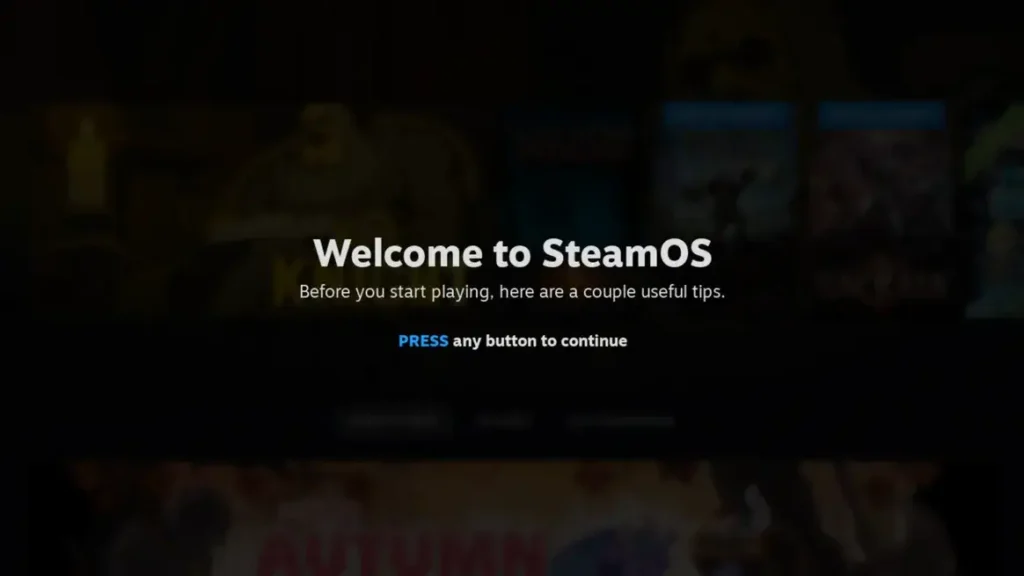
I make it sound easy, but that permissions thing was arduous until I retried the pairing step once more.
I don’t need to tell you how to use SteamOS, but there’s one last thing you must do before diving in.
Audio Fix: Because Crackly Sound Ruins Everything
Before benchmarking your games instead of playing them, ensure you are in the DroidDeck menu, not Steam, and click the settings icon next to the ‘Play Steam’ button.
Change your default resolution to 1080p (you can configure later if you want), keep everything default to begin with and then navigate to the Audio tab and select DirectAudio from the Steam client audio. Make sure to exit the app completely, then reopen it, as it won’t apply the changes.
Start as-is, and you’ll get crackly audio so bad it makes 1666: Amsterdam sound like a symphony. Flip to DirectAudio and breathe again.
And that’s it.
Adding Decky is a simple enough task, and configurations are so much easier. I haven’t been playing a ton of games through yet as it’s fresh for me, too, but I played Valheim, Sucker for Love: To Die For, and started Brütal Legend again. All run great.
Hope this helps, and you’ve saved some pennies on a Steam Deck and rooting your gear. Oh, and if you do want a Steam Deck, I know someone who might be selling his….
No Comment! Be the first one.